
PureTrack currently stores full track data for 7 days. Basic track data is stored for 32 days.
PureTrack Pro is required to view track data older than 48 hours.
Note: OGN data (including FLARM) is only available for 24 hours due to the OGN data usage licence. So for pilots who want their track data stored longer, a secondary source is required, e.g. cellular or ADSB.
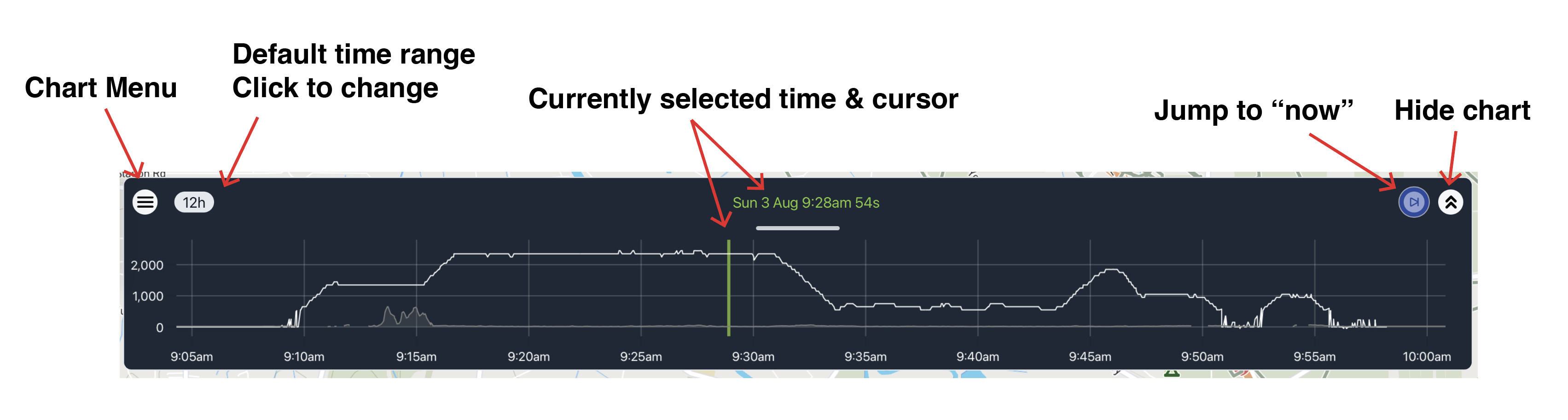
To change selected point:
To change zoom on chart:
Selecting a point on the chart will pause the PureTrack map. The currently selected time will appear at the top center of the map, and in green on the chart. Blue buttons appear to go back to live view or 'now'.
An amount of track will be loaded when clicking on a map marker. You can change how much is loaded from the track length button. It shows the currently selected length.
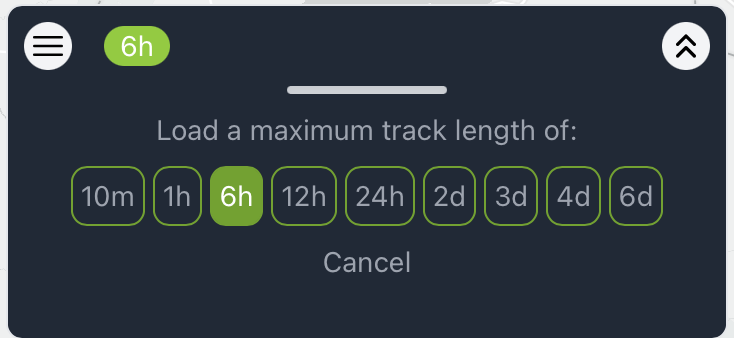
Note selecting many days may result in loading large amounts of data or fail (depending on the density of the data sources used). Use larger multi-day time frames with caution!
There are two methods to find older track data:
PureTrack attempts to identify take off and landings of aircraft. They are listed on the info panel for a selected map marker under "Flights".
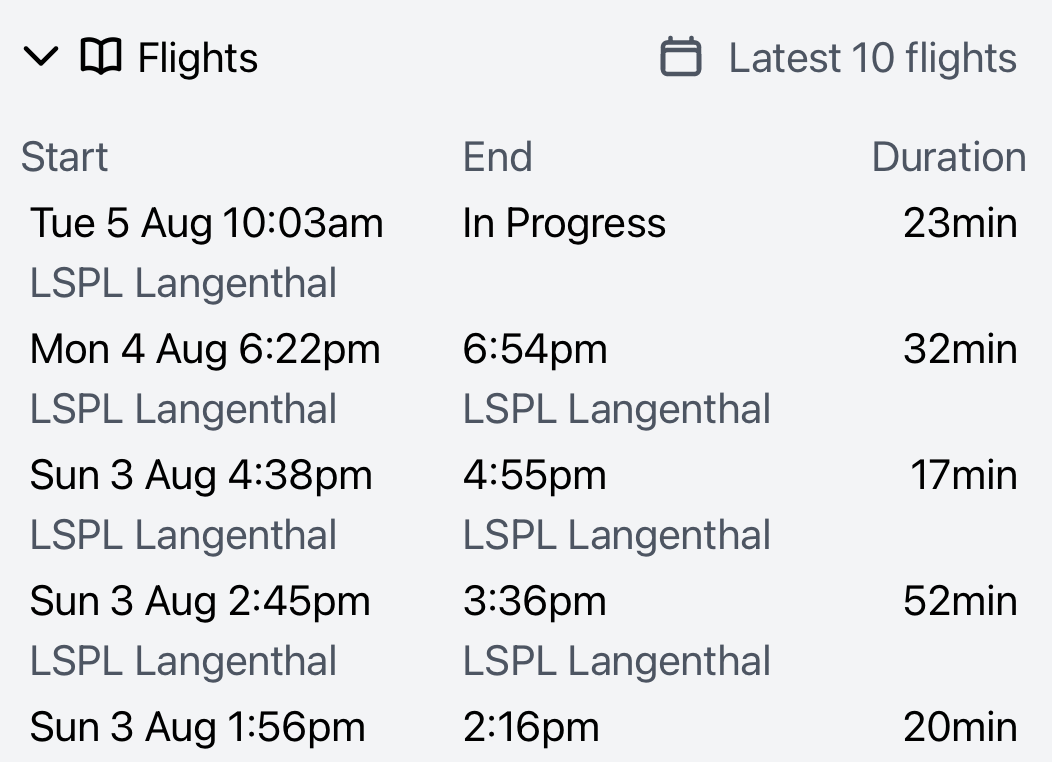
Click a flight to load just that flight track.
Click "Latest 10 flights" to select a specific date from recent flights.
Only flights in the last 30 days will have track data available.
Any days with track data available are listed in this list under "Track history".
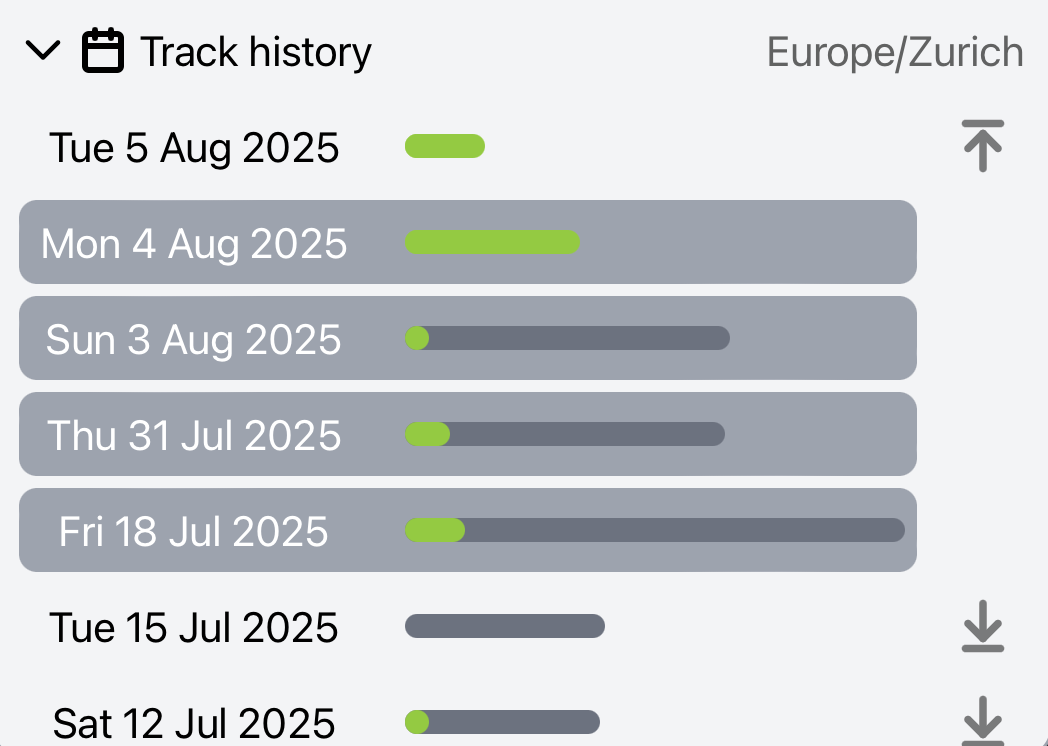
Click any day to load that day's tracks.
Green bar indicates data is available to view. Grey bar is OGN data that is no longer available. The size of the bar indicates how mant data points each day has relative to the other days.
Click the up/down arrows on the right to expand the selection to multiple days. Again be cafeful how many days data you load, large amounts of data will be very slow loading, or may fail.
The timezone used to define a 'day' is by default set to the timezone in the center of the map, when the panel is opened or a new map marker is selected. To change this behaviour, use the setting under Menu -> Settings -> Units -> Time zone. The currently used timezone is shown top right.
For aircraft that cross multiple timezones you might need to select multiple days to load complete tracks.
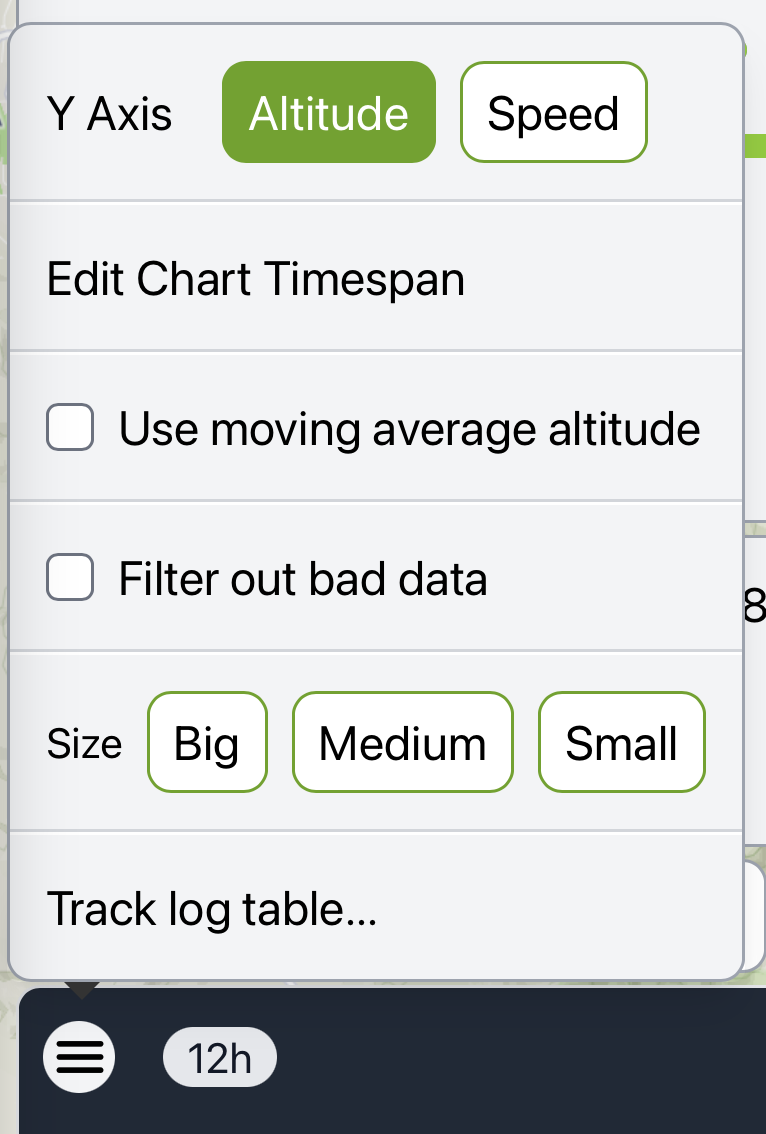
"Track log table..." Open a page to view the currently selected data in a table format.
"Size" Change the size of the chart. Or drag the grab bar at the top of the chart.
"Filter out bad data" PureTrack can attempt to remove data that has unrealistic distance and speed from previous points.
"Use moving average altitude" PureTrack can average the altitude data using a moving average 60 seconds either side of each point. Useful to remove the 'saw tooth' pattern when two data sources have slightly different altitude offsets.
"Edit chart timespan" Opens the default track length option.
"Y Axis" Choose if you're looking at altitude or speed. Altitude also shows ground level. If viewing boats or vehicles, speed may be more useful.